

Where it lives: Sidebar → Proptech Configuration → Challenges.

The Challenges grid - every challenge, with the ability to add new ones.
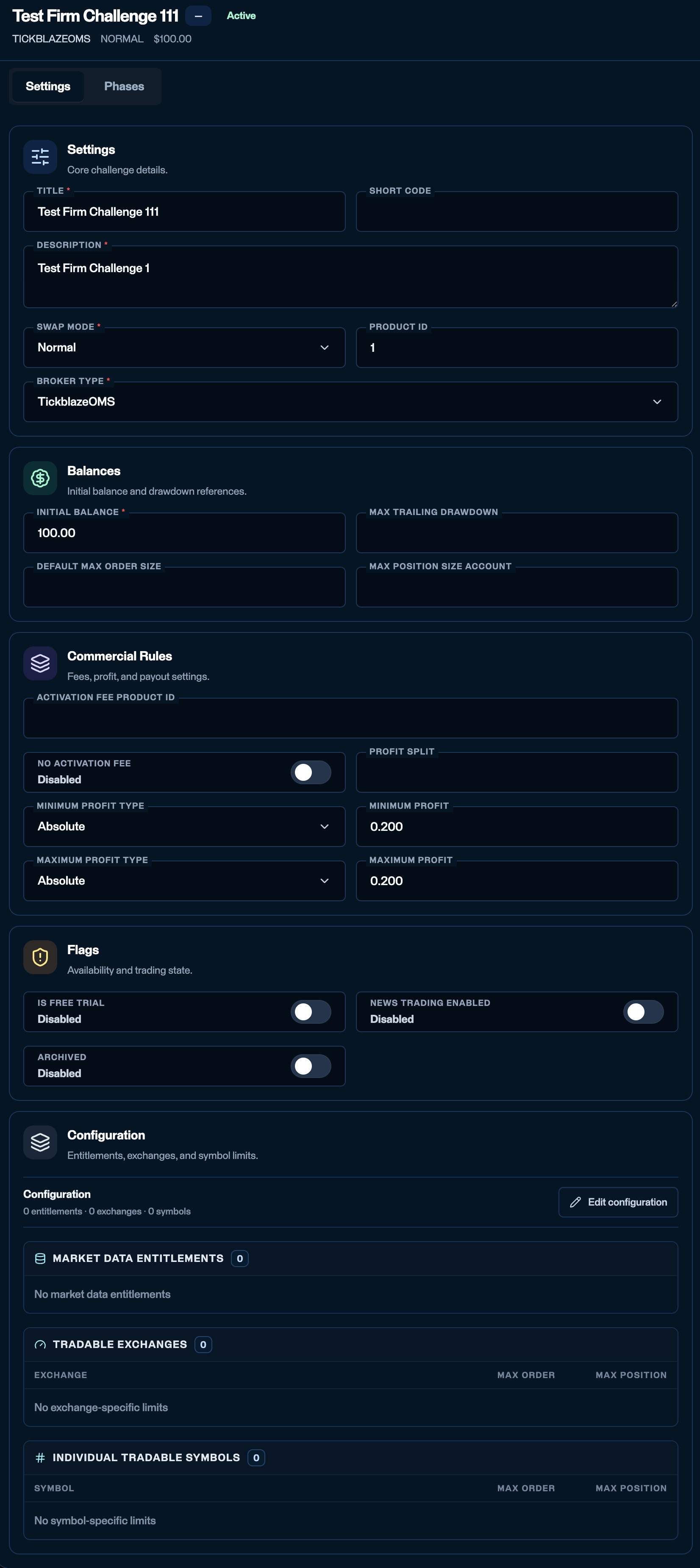
Challenge Settings - Settings, Balances, Commercial Rules, Flags, and Configuration.
Settings
Core challenge details.Balances
Initial balance and drawdown references.Commercial Rules
Fees, profit, and payout settings.No activation fee
Read the name carefully - this toggle is stated in the negative.
Once the payment gate ships, turning it off will mean the firm collects the fee on its own checkout and trading opens after that payment is confirmed. Two shapes:
- Between phases. A trader passes Step 1. Step 2 is gated, so they pay the activation fee first; once payment is confirmed, they can trade the Step 2 account.
- On a single-phase challenge. The trader must purchase before they can trade the only account on that challenge.
Minimum profit
The profit a day must produce for that day to count as a trading day. It does not change P&L; it changes the day count. With Minimum profit set to200, a session must make $200 or more to count toward Minimum trading days:
So a trader on a five-trading-day phase needs five profitable enough days, not just five days with a trade. Losing days and thin winning days still move the balance - they simply do not advance the count. Minimum profit type sets how the number is read (for example
Absolute for a dollar amount).
Leave it blank and every day with an opening trade counts, whatever it made.
The remaining Commercial Rules fields:
Activation fee product ID
Activation fee product ID
The checkout product the activation fee will be billed against. Your Tickblaze contact configures this with you during setup. Like the toggle above, it is recorded but not yet acted on.
Profit split
Profit split
The share paid to the trader on a payout - e.g.
0.8 = 80% to the trader, 20% to the firm. Used for payout accounts.Maximum profit
Maximum profit
A cap on how much profit a single trade may make. Leave it blank for no cap. Maximum profit type sets how the number is read.
Flags
Availability and trading state.Configuration
Entitlements, exchanges, and symbol limits. Click Edit configuration to set them.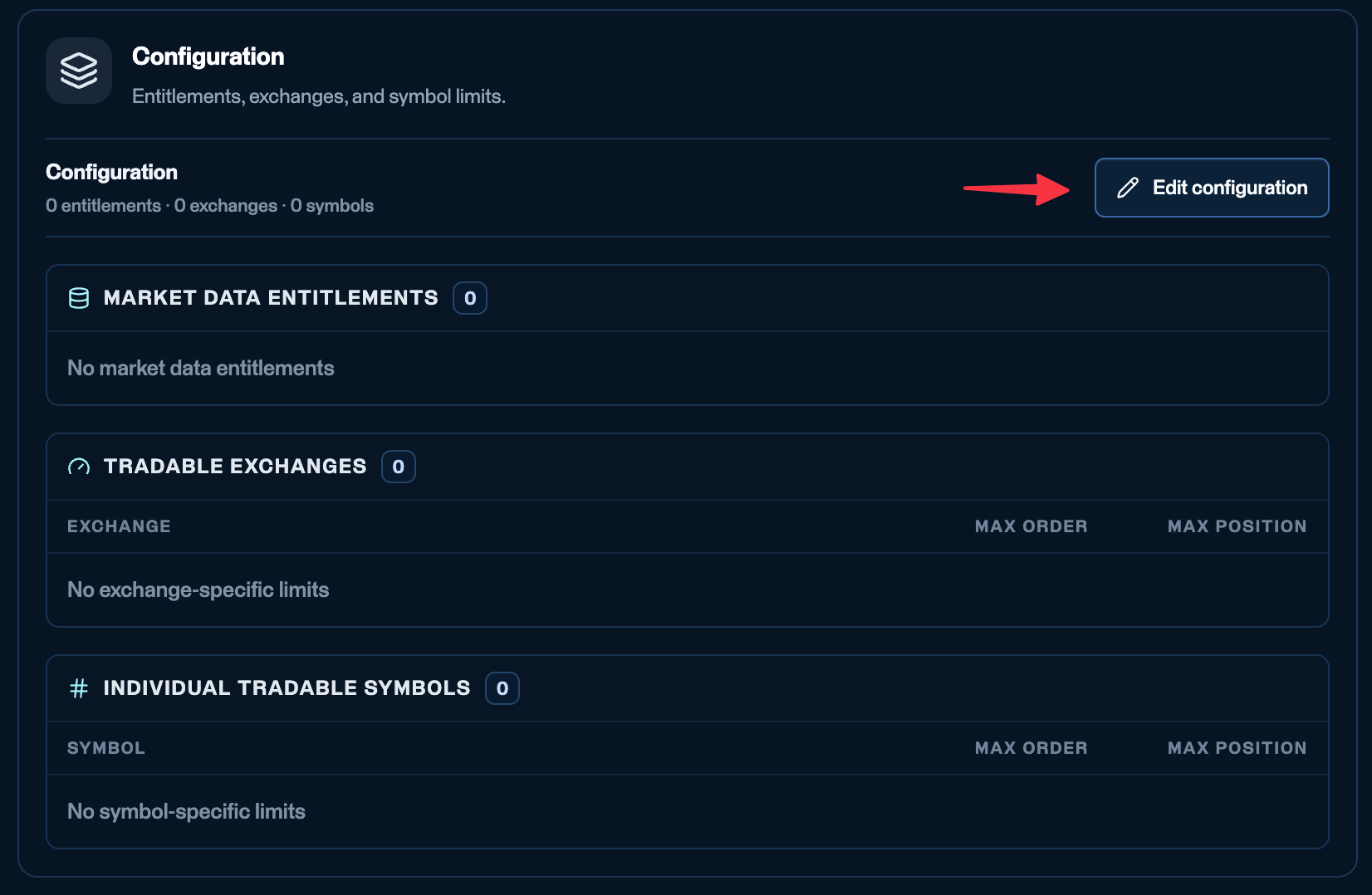
Configuration - Market data entitlements, Tradable exchanges, and Individual tradable symbols.
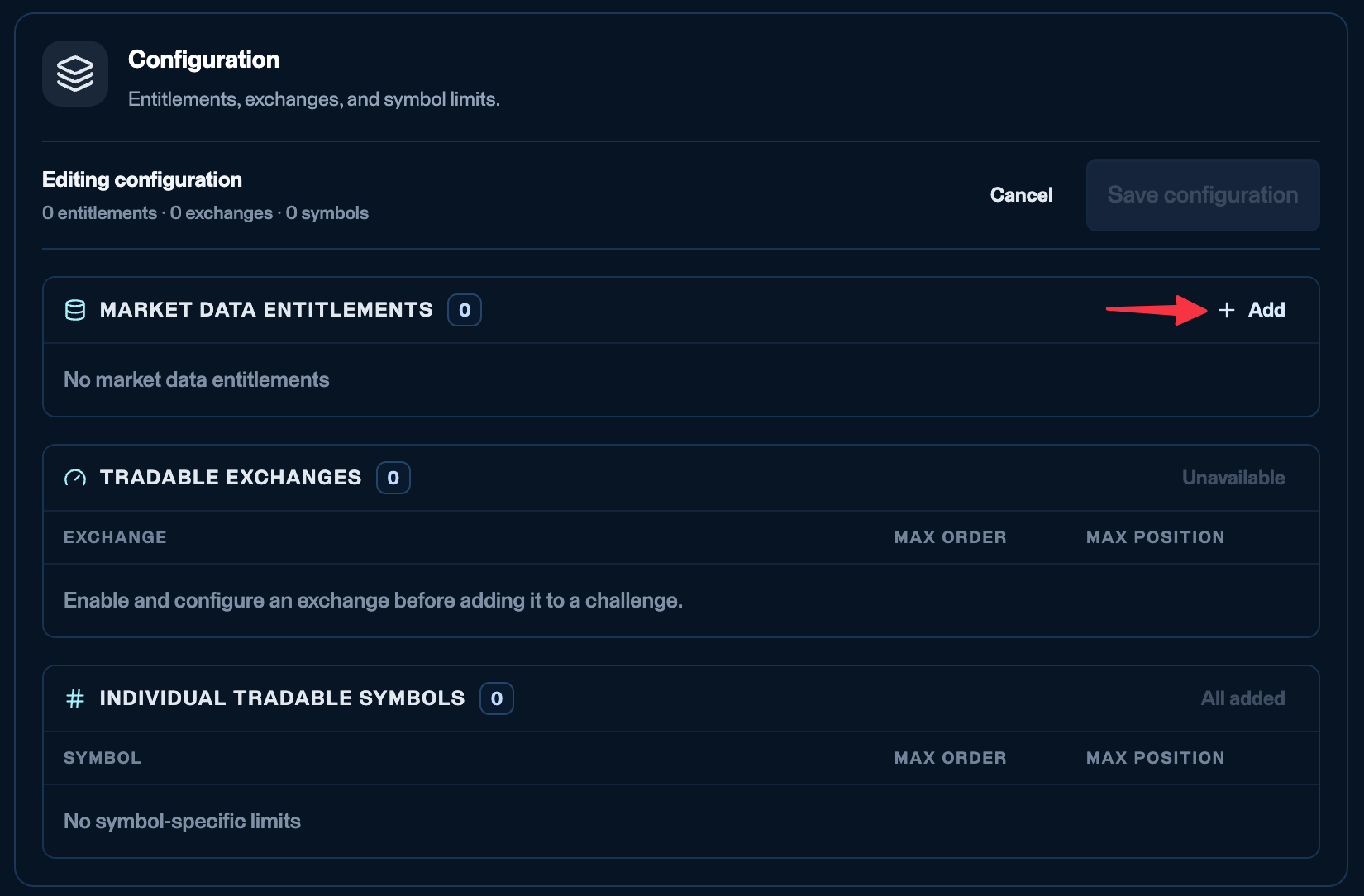
In the Configuration section, click Add to attach a market data entitlement.
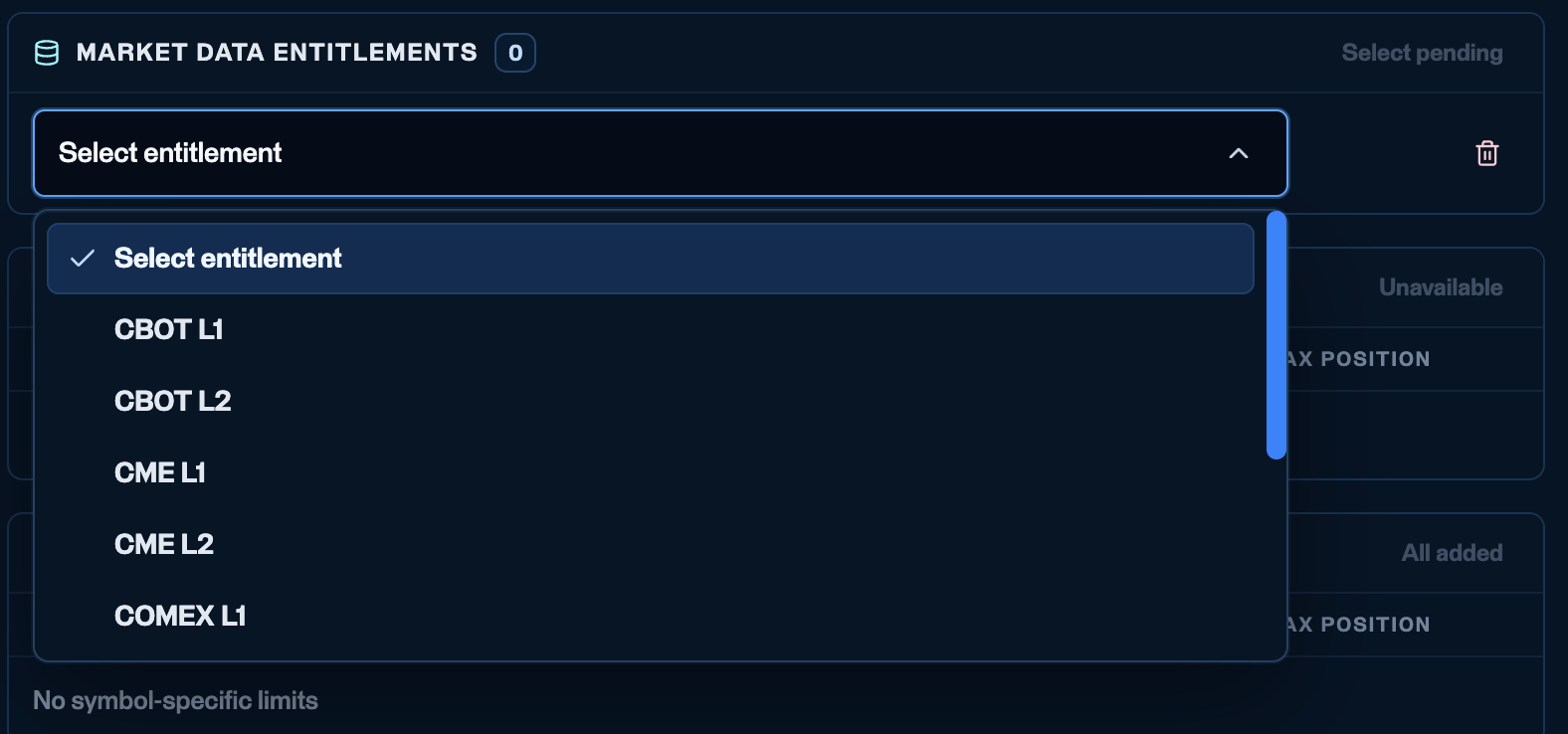
Selecting a market data entitlement.
- Add a market data . Click Edit configuration, then Add, and choose an entitlement from the dropdown - CBOT L1/L2, CME L1/L2, COMEX L1/L2, NYMEX L1/L2, or Nasdaq L1/L2.
- Futures challenge: add the L1 data for CME, CBOT, COMEX, and NYMEX (the basic data most futures traders need).
- Stocks challenge: add Nasdaq L1 (or L2). Choosing Nasdaq makes this a stock challenge.
- Save and apply changes to the challenge configuration.
- Add tradable exchanges - the matching exchanges (CBOT, NYMEX, COMEX, and CME for a futures challenge; Nasdaq for a stocks challenge).
- Add individual tradable symbols. Manually add the exact symbols this challenge allows. Even if a symbol is enabled firm-wide, you can exclude it here - and set a per-symbol max position size that overrides the account-level cap.
One challenge with phases, or separate challenges?
Both work - it depends on your checkout:- One challenge, multiple phases - the phases live under a single challenge. Each phase also has a phase ID exposed via the API, which you can map to checkout products.
- Separate challenges per phase - create one challenge (each with its own phase) per stage. Useful when each phase is a distinct checkout product, and required if you charge separately to advance (see Commercial Rules).
When we onboard your firm, we set the first challenges up with you - and you can create your own afterward. Every challenge should have at least one phase.