

Where it lives: Sidebar → Tickblaze Manager → Users. A similar Users tab exists under User Configuration - use it to browse and add users, export the list, and reach per-user actions such as Block user - but day-to-day operational changes happen here.
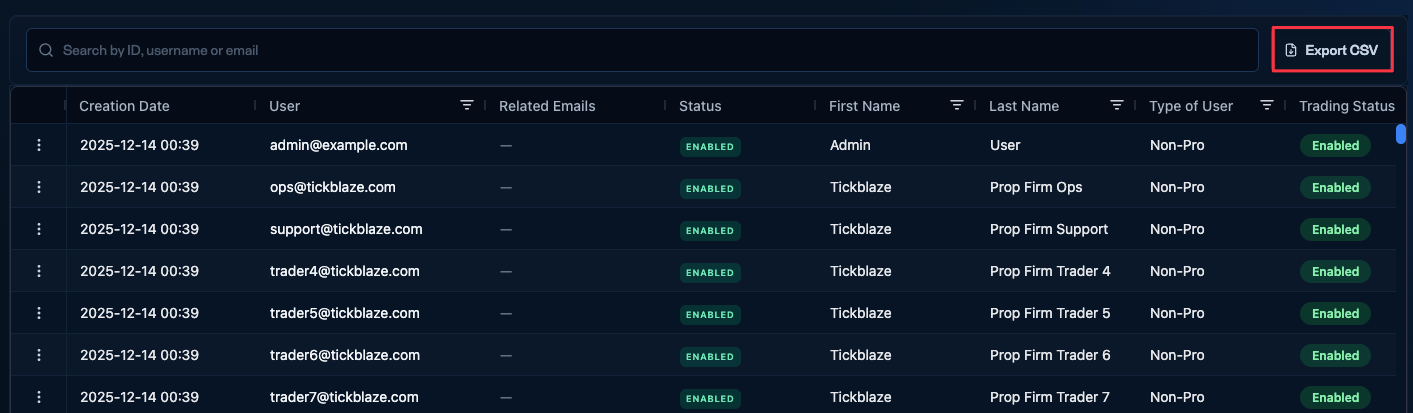
The Users tab - searchable, filterable columns, with Export CSV at the top right.
What the grid shows
Right-click any column header to add or remove columns. The default columns:
A counter at the bottom of the grid shows how many users are loaded.
Key definitions
Status vs Trading status
- Status - the user-record state: Enabled (active) or Disabled (deactivated; the user cannot operate).
- Trading status - whether the user can place trades right now. A user can be Enabled but still unable to trade.
Type of user (Pro / Non-Pro)
A market-data classification the trader chooses by self-certification at first login. Both classes receive real-time data - the difference is professional fees. is the retail classification (personal use, no financial license). is for licensed or institutional users, who pay professional fees for L1 + L2 data.Related emails and merged profiles
The Related emails column shows when a user has another email that belongs to the same person - for example a second sign-up with a similar address - that has been merged into this profile.- Who merges profiles - only the Tickblaze team. Operators can’t merge users themselves.
- Need two profiles merged? If you find the same person under two emails (or a similar duplicate) that should be a single customer, reach out to the Tickblaze team to have them merged.
- Why it matters - merging keeps one person as one customer for billing and entitlements.
Search
Search at the top of the grid to find a user by user ID, username, or email.Export users
Click Export CSV at the top right of the Users tab to download the current user list as a CSV file.Row actions
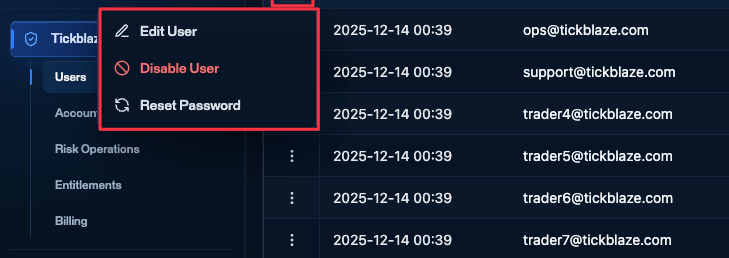
Right-click a user row (or use the three-dot menu) for Edit user, Disable user, and Reset password.
Edit user
Open the full user record.
Disable user
Sets the user’s Status to Disabled and blocks their trading accounts for your firm.
Reset password
Resets the user’s password from here. The trader is not emailed when your firm does it this way - tell them yourself. If the trader instead resets their own password on the Tickblaze website, they do get an email.
Column controls
Right-click any column header - in any grid across Tickblaze Manager - for Sort ascending / descending, Pin column, Autosize this / all columns, Choose columns, and Reset columns. You can also drag columns to reorder them.Column settings are per operator. Customizing your view affects only you; Reset columns restores your own default, not anyone else’s.
Operational notes
- Internal staff records can also appear here - open Edit user and check the Role field on the Overview tab to tell them apart from customers.
- This is often the first stop for support or risk when starting a review.