

Where it lives: Sidebar → Tickblaze Manager → Accounts.
What the grid shows
Right-click any column header for the platform-wide column controls. Default columns:
At the top of the grid: the Pause / Play toggle, a Search box, and a CSV export button. Filters live in their own panel - right-click any row and choose Show Filters Panel to filter by user, symbol, environment, challenge, account size, direction, profitability, status, and more.
Pausing and resuming the grid
This is the most important behavior on the tab. The grid is live by default - rows update in real time, and the order shifts if you sort on a moving column like PnL or Balance. Because a row can move out from under your cursor mid-click, the per-row actions are switched off while the grid is running.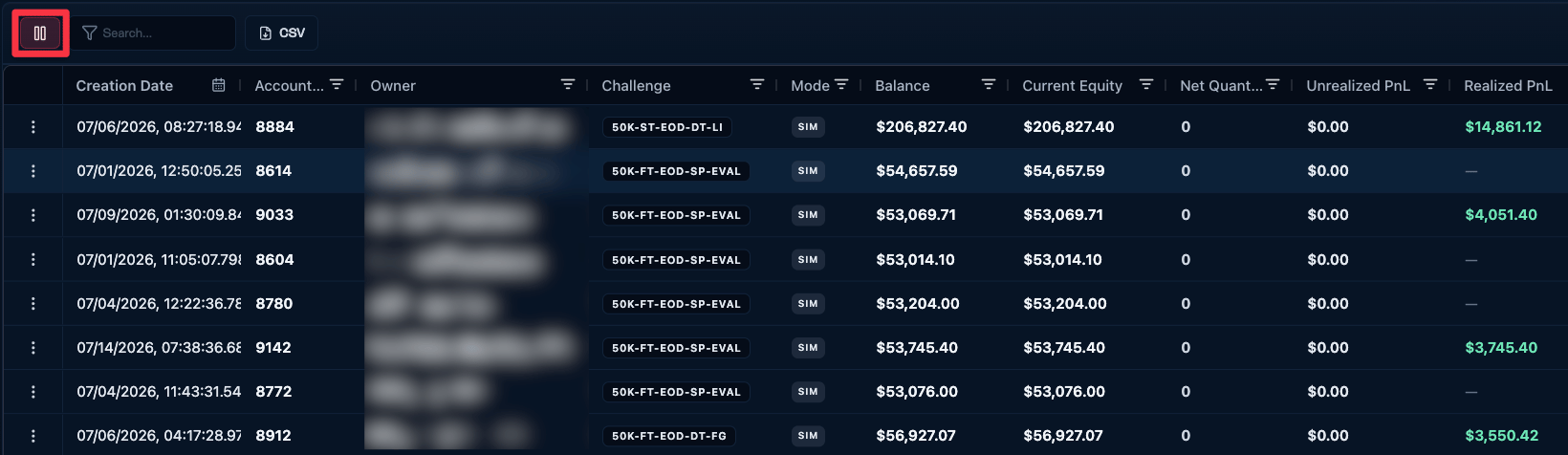
The live grid. The button at the top left shows a pause icon, which means the grid is currently running.
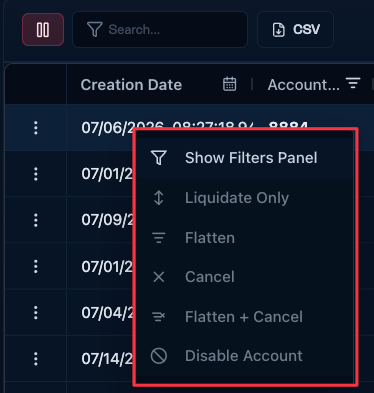
While the grid is live every account action is greyed out. Only Show Filters Panel works.
- The button turns into a green play icon - click that to start the grid moving again.
- Two firm-wide buttons appear at the top: Flatten All and Flatten & Disable Accounts.
- The right-click menu becomes active, so every row action is available.
- You can pin individual rows so they stay put when you resume.
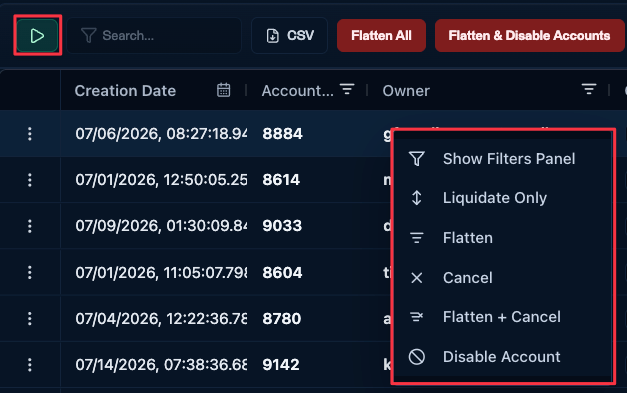
Paused: the button is now a green play icon, the two firm-wide buttons appear, and every row action is available.
For risk: during market hours, pause only briefly - take the action, then resume. While the grid is paused you stop seeing prices and PnL move.
Row actions (only when paused)
Firm-level actions (only when paused)
Per-row controls
On the left of each row:- Eye icon - opens the Account details modal (Overview, Positions, Order History, Status, Settings).
- Pin icon - pins the row so it stays in place while the grid re-sorts.
Operational notes
- Pause before clicking. On a moving grid the right-click menu opens, but five of its six items are greyed out - only Show Filters Panel is clickable.
- Pin rows you are inspecting so they stay put when you resume.
- Filter before destructive actions. Flatten All and Flatten & Disable Accounts apply to whatever is filtered in your view.